
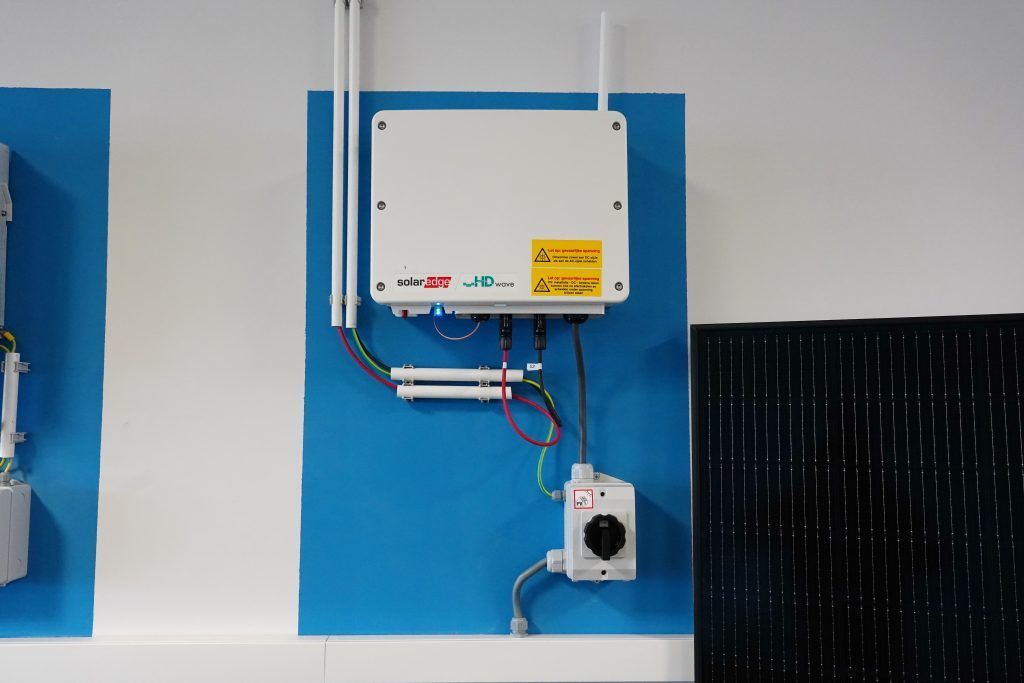
Inverters
Want to get the most out of your solar panels? Then it is important that your SolarEdge monitoring is working properly. This allows you to see exactly how much electricity your system is producing and quickly…
Want to get the most out of your solar panels? Then it’s important that your APsystems monitoring is working properly. This allows you to keep track of your solar energy production and quickly detect any issues. Is your monitoring no longer working or is your ECU offline? In this article, we explain step by step how to reconnect APsystems monitoring to your Wi-Fi network.
Have you installed a new router or changed your Wi-Fi password? If so, your APsystems ECU needs to reconnect to your Wi-Fi network. This can easily be done using the APsystems EMA app.
Make sure you are close to the ECU (the monitoring unit) and have the EMA app open. Then activate the ECU’s AP mode.
The AP mode button is located on the side of the ECU. Press and hold it for approximately two seconds.
After a few seconds, the ECU will appear as a Wi-Fi network in your phone’s Wi-Fi settings. By connecting to this network, you can access the ECU settings.
First, log out of the EMA app and open the Wi-Fi settings on your phone. Temporarily disable your mobile data connection (4G or 5G). Next, connect to the Wi-Fi network named “ECU”. You will be asked to enter a password. If it has never been changed, use the default password: 88888888. Open the EMA app again and select Local Access. Then go to WLAN, select your home Wi-Fi network and enter the correct Wi-Fi password. After a few minutes:
You can now re-enable your mobile data, close the app and log back in. If the connection has been restored successfully, your solar production data will be displayed again.
Check your APsystems EMA app regularly to ensure your microinverters are producing power and that your monitoring is updating correctly. Also make sure your Wi-Fi connection is stable and that the ECU is installed in a location with a strong Wi-Fi signal. If the signal is weak, installing a Wi-Fi extender can help improve the connection.
By following these steps, you can ensure your APsystems monitoring is working correctly again, allowing you to keep track of your solar energy production at all times.
Want to get the most out of your solar panels? Then it is important that your SolarEdge monitoring is working properly. This allows you to see exactly how much electricity your system is producing and quickly…

The end of the net metering scheme is getting closer, and many questions are arising. What happens to solar panels after net metering ends? Are solar panels still profitable once the scheme is gone? From January…